AL Upgrade Radar: see what the next release breaks
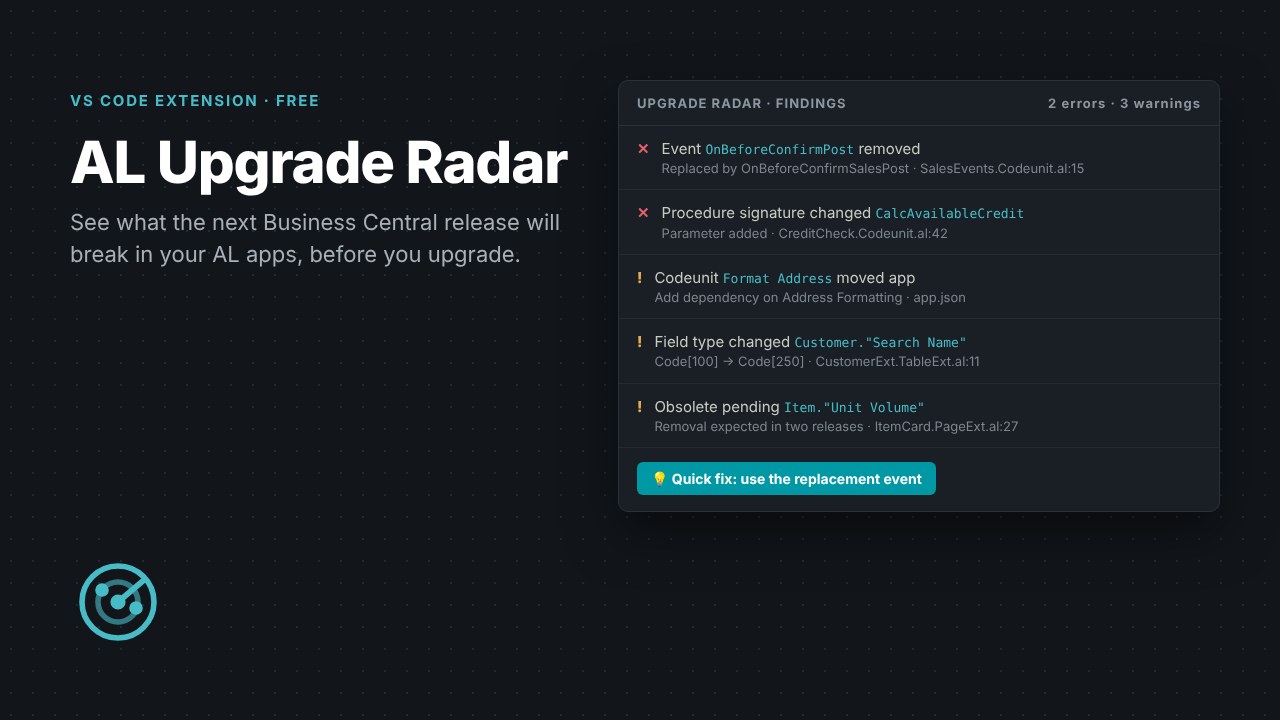
A VS Code extension that shows what the next Business Central release will break in your AL apps before you upgrade. It compares symbol packages, points at the exact lines affected, offers quick fixes and exports a migration checklist. Runs offline. Version 0.1, the first release.
How to install in VS Code
You need VS Code 1.85 or later with Microsoft's AL Language extension, and an AL project that has been built at least once (so its .alpackages folder holds the symbols you compile against today).
- Download the .vsix file using the button below.
- In VS Code open the Extensions view:
Ctrl+Shift+X(Mac:Cmd+Shift+X). - Click the ... menu at the top of the Extensions view, choose Install from VSIX... and select al-upgrade-radar-0.1.0.vsix.
- Get the target symbols for the version you are moving to. Either use BcContainerHelper:
Download-Artifacts -artifactUrl (Get-BCArtifactUrl -type Sandbox -version 28 -country w1 -select Latest)and use the Extensions folder of the download, or point a copy of your app.json at the new version, connect it to a sandbox on that version and run AL: Download symbols. - Open your AL project, click the Upgrade Radar icon in the activity bar (or press
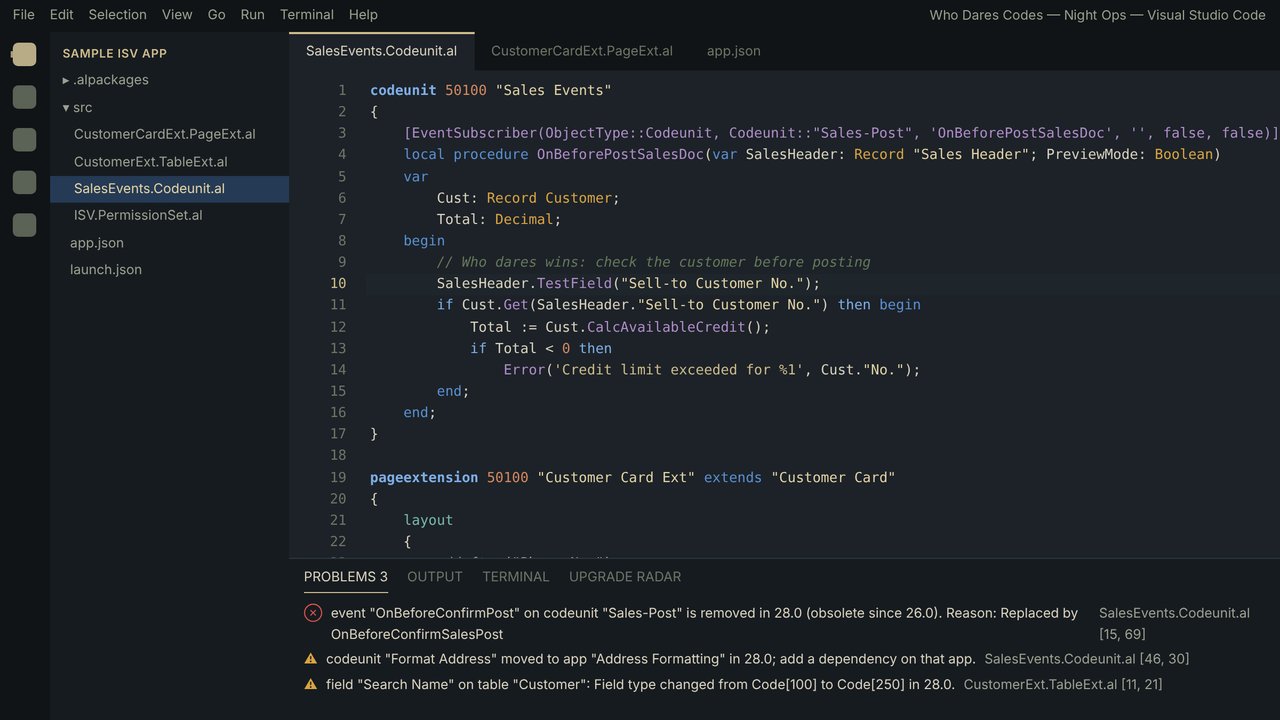
Ctrl+Shift+Pand run Radar: Scan workspace against target symbols) and pick the target symbols folder. - Work through the findings in the Upgrade Radar view or the Problems panel. The lightbulb offers quick fixes, such as switching to a replacement event or adding a missing dependency.
- Run Radar: Export migration checklist to get a Markdown task list of everything to change.
Tip: for findings marked possible, run Radar: Confirm possible matches with the AL language server to settle them.
Radar reads your source and the .app symbol files on your machine. It does not change anything until you accept a quick fix, so keep your project in source control and review changes before you commit them.